
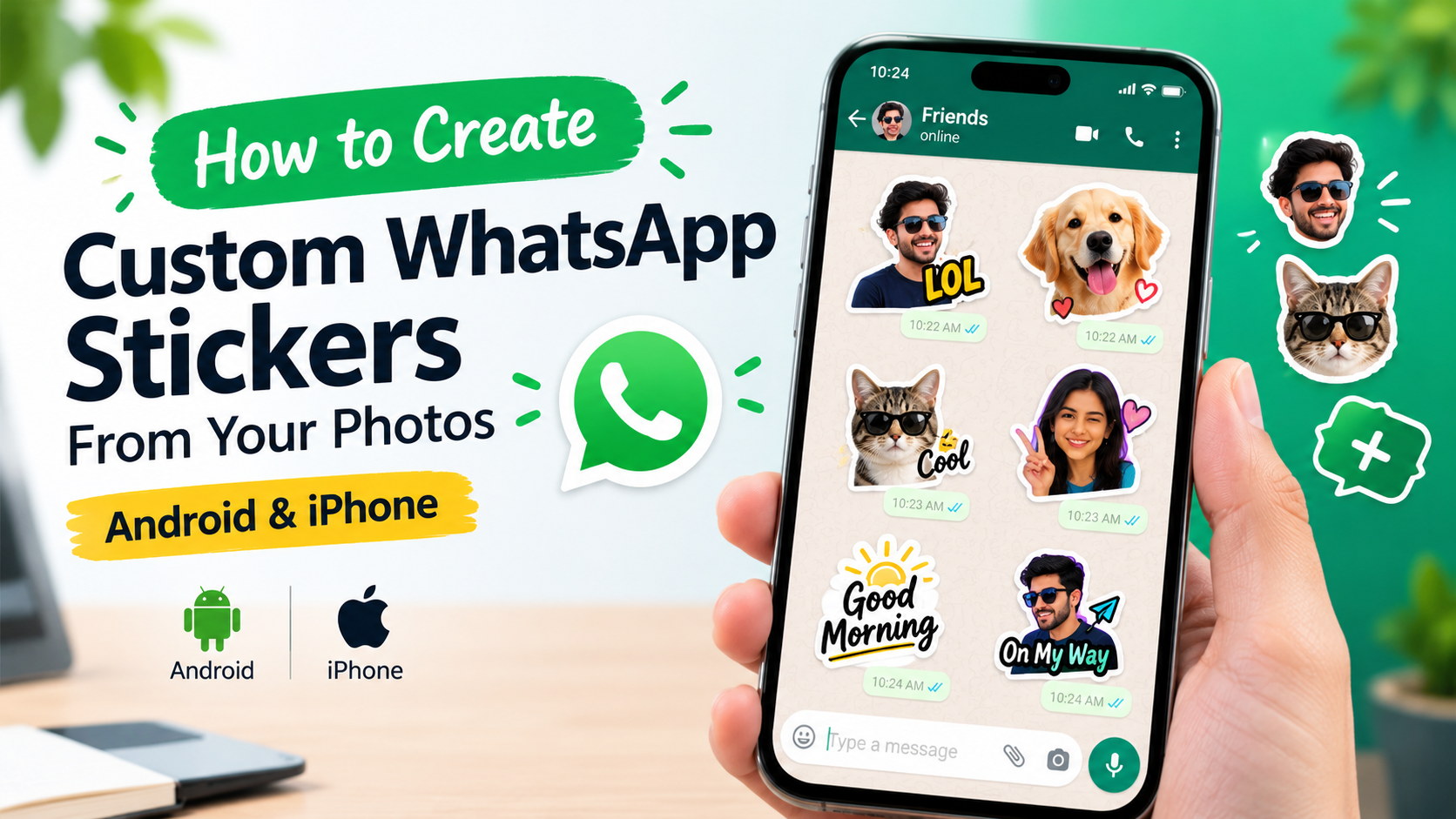
Have you ever wanted to turn your selfie, a funny photo, or your pet’s expression into a WhatsApp sticker? You can do that without being a graphic designer. With WhatsApp’s built-in sticker tools, you can create personalized stickers, add text or drawings, and share them with friends in just a few steps.
In this guide, you’ll learn how to create custom WhatsApp stickers on Android and iPhone, make stickers from your own photos, customize their appearance, and fix common problems. We’ll also explain when you might need a third-party sticker maker.
What Are Custom WhatsApp Stickers?
Custom WhatsApp stickers are personalized images you can send in chats instead of ordinary text or emojis. Unlike standard emoji, custom stickers can feature your own photos, facial expressions, illustrations, memes, and short messages.
You can create stickers for different situations, such as:
- Funny reactions for friends and family.
- Selfie stickers featuring your own expressions.
- Cute stickers of cats, dogs, and other pets.
- Birthday wishes, greetings, and celebrations.
- Personalized text stickers with phrases you use every day.
The best part is that you may not need an additional app. WhatsApp includes sticker creation tools on supported versions, although the available options can vary by device and app version.
What You Need Before Creating WhatsApp Stickers
Before you start, make sure you have the following:
- An updated version of WhatsApp.
- A photo or image saved on your phone.
- Permission to use the photo, particularly if it features another person.
- A photo editor or sticker-making app if you want additional design options.
For the best results, choose a clear, well-lit image with a subject that stands out from the background.
How to Create Custom WhatsApp Stickers on Android
If you use an Android phone, you can create stickers directly in WhatsApp when the feature is available on your device.
Step 1: Open WhatsApp
Launch WhatsApp on your Android phone and open an individual or group conversation where you want to send your sticker.
Step 2: Open the Sticker Panel
Tap the emoji or sticker icon near the message box. Switch to the stickers section if necessary.
Look for a Create, plus, or similar sticker creation option. The exact label and location may differ between versions.
Step 3: Choose a Photo
Select a photo from your gallery. You can use a selfie, a picture of your pet, or another image that you want to turn into a sticker.
Choose a photo with a clear subject so that the cutout looks clean.
Step 4: Customize Your Sticker
If the editor offers customization tools, use them to make your sticker more expressive. Depending on the available options, you may be able to:
- Add text or a short caption.
- Draw on the image.
- Add decorative elements or emojis.
- Adjust or refine the sticker’s appearance.
Keep the design simple so that it remains easy to understand on a small phone screen.
Step 5: Preview and Send
Review your sticker before sending it. If the result looks good, tap the send button.
Your custom sticker is now ready to use in the conversation. You may also be able to add it to your favorites for quicker access later.
Tip: If you cannot find the Create option, update WhatsApp through Google Play and check whether sticker creation is supported in your current version.
How to Create Custom WhatsApp Stickers on iPhone
iPhone users can also create personalized stickers using WhatsApp’s available tools. Another option is Apple’s built-in photo sticker feature.
Method 1: Create a Sticker Inside WhatsApp
Follow these steps:
- Open WhatsApp on your iPhone.
- Enter any conversation.
- Tap the sticker icon in the message area.
- Look for the Create option, if available.
- Choose a photo from your library.
- Customize the sticker using the available editing tools.
- Preview your design and send it.
This method is convenient because you can create and send a sticker without switching between multiple applications.
Method 2: Turn a Photo Into a Sticker Using iPhone Photos
You can also create a sticker from the main subject of a compatible photo using Apple’s Photos app.
- Open the Photos app on your iPhone.
- Select a photo that contains a clearly visible person, animal, or object.
- Touch and hold the main subject until it is highlighted.
- Release your finger and tap Add Sticker, if the option appears.
- Choose an available effect, such as an outline, if desired.
- Open the sticker collection from a supported app or keyboard and check whether your sticker is available.
This creates a reusable iPhone sticker. Availability and the process for inserting it into WhatsApp can depend on your iOS version and device.
How to Make WhatsApp Stickers From Your Own Photos
Turning your photos into stickers is one of the easiest ways to personalize your chats. The key is to choose a suitable image and remove unnecessary background details.
Choose a Good Photo
Start with a sharp image where the main subject is easy to identify. A close-up selfie or a pet sitting against a plain background often works well.
Avoid blurry pictures or images with too many overlapping objects.
Remove the Background
A clean cutout helps your sticker look more professional. Use WhatsApp’s built-in editing tools or a trusted photo editor with background-removal features, if needed.
Check the edges around hair, clothing, and other fine details. Poorly removed backgrounds can make stickers look unfinished.
Add a Border or Outline
A simple outline can help your sticker stand out against both light and dark chat backgrounds.
Avoid adding too many decorative effects. A clean cutout with a subtle outline is often easier to recognize.
Save and Test Your Sticker
Send the sticker to a personal chat or a trusted contact to see how it looks at its actual display size.
If the image is difficult to recognize, try using a closer crop or a simpler design.
How to Add Text to Custom WhatsApp Stickers
Text can turn an ordinary photo into a funny reaction sticker. Short captions are usually more effective than long sentences.
Here are some ideas:
- LOL — for something funny.
- Really? — for a surprised reaction.
- On My Way — for everyday conversations.
- Good Morning — for greeting friends.
- Thank You — for expressing appreciation.
- No Way! — for disbelief or surprise.
For readable text, choose a clear font, use strong contrast, and avoid placing words too close to the edges. Make sure the caption remains legible when the sticker is displayed at a small size.
If WhatsApp’s built-in editor does not provide the text tools you need, prepare the image in a trusted editing app before importing it into a compatible sticker maker.
How to Create a Custom WhatsApp Sticker Pack
If you want to use several related stickers, creating a collection can make them easier to organize.
For example, you could create a pack featuring your own facial expressions, family reactions, pet photos, or everyday messages.
Depending on your WhatsApp version, you may be able to create a sticker pack directly in the app and share it with other people. If that option is unavailable, a compatible sticker-maker application may offer another way to package and export stickers.
To make a useful collection:
- Choose a theme for your stickers.
- Create several images with a consistent style.
- Use short captions and recognizable expressions.
- Give the collection a descriptive name, if supported.
- Use WhatsApp’s available sharing options to send the stickers or pack to friends.
Remember that sending an individual sticker is not necessarily the same as sharing an entire sticker pack. The available options depend on the tools you’re using.
Can You Create Animated WhatsApp Stickers?
Yes, animated stickers are supported by WhatsApp, but creating them may require a compatible sticker editor or animation tool.
Unlike static stickers, animated stickers contain movement. You might use a short reaction animation, a waving character, or a simple looping effect.
For the best results, keep the animation smooth and avoid unnecessary movement. Before exporting, check that your creation tool supports WhatsApp-compatible animated stickers and follows the required file specifications.
If you only want to turn a regular photo into a sticker, a static sticker is usually the easier option.
Custom WhatsApp Stickers vs. Emojis vs. GIFs
| Feature | Custom Stickers | Emojis | GIFs |
|---|---|---|---|
| Use your own photos | Yes, with supported tools | No | Possible with suitable tools |
| Add personalized text | Often possible | Limited | Possible |
| Animated content | Supported formats only | Depends on the emoji | Yes |
| Quick reactions | Yes | Yes | Yes |
| Design flexibility | High | Limited | High |
Custom stickers are particularly useful when you want to express a specific emotion or share an image that standard emojis cannot convey.
Common WhatsApp Sticker Problems and How to Fix Them
The Create Sticker Option Is Missing
The feature may not be available in your current app version or on your device. Update WhatsApp through the official app store and check the sticker panel again.
If the option is still missing, try a compatible third-party sticker maker.
The Sticker Looks Blurry
Blurry stickers often come from low-resolution images, excessive cropping, or repeated compression.
Use the original photo whenever possible and avoid enlarging a small image too much.
The Background Does Not Disappear Properly
Automatic background removal can struggle with complicated scenes, similar colors, or fine details.
Choose an image with a clear subject or use a photo editor that lets you refine the cutout manually.
My Sticker Is Not Showing in the Sticker Panel
If you created a sticker using an external app, make sure you completed its export or add-to-WhatsApp process.
Close and reopen WhatsApp if necessary. Also check whether the sticker-making app is compatible with your current operating system.
My Animated Sticker Will Not Import
Check whether your editor supports WhatsApp’s animated sticker format. Unsupported file types or incorrect export settings can prevent a sticker from importing.
Try exporting again with a compatible tool and its recommended settings.
Is It Safe to Use Third-Party WhatsApp Sticker Maker Apps?
Third-party sticker makers can provide extra features, including advanced background removal, text styles, templates, and sticker-pack management. However, you should choose them carefully.
Follow these safety tips:
- Download apps from Google Play or Apple’s App Store.
- Review the developer’s reputation and recent user reviews.
- Check app permissions before granting access to your photos.
- Avoid apps that request unrelated permissions, such as access to SMS messages or call logs.
- Do not upload private photos or sensitive documents to unfamiliar online tools.
- Use images that you own or have permission to edit and share.
For basic photo stickers, try WhatsApp’s built-in tools first. You may not need to install another app.
Frequently Asked Questions (FAQs)
1. Can I create custom WhatsApp stickers for free?
Yes. WhatsApp’s built-in sticker creation features can let you make personalized stickers without paying for a separate sticker maker. Some third-party apps may offer optional paid features.
2. Can I make WhatsApp stickers from my selfies?
Yes. You can use a selfie as the source image and create a sticker using WhatsApp’s supported tools. On compatible iPhones, you can also extract the main subject of a photo using the Photos app.
3. Do I need a separate app to create WhatsApp stickers?
Not always. WhatsApp includes built-in creation tools on supported versions. A separate app may be useful if you need more advanced editing or sticker-pack features.
4. Can I create WhatsApp stickers without removing the background?
Yes. You can use a complete image if you prefer. However, removing or simplifying the background can make the main subject stand out more clearly.
5. Can I share my custom stickers with friends?
Yes. You can send custom stickers in WhatsApp chats. Where sticker-pack sharing is supported, you may also be able to share a complete collection.
6. Can I create animated stickers from videos?
You can create animated WhatsApp stickers using compatible editing tools. The video or animation must be converted into a supported sticker format before it can be imported.
7. Why can’t I see the sticker creation feature on my phone?
The option may differ according to your WhatsApp version, operating system, or device. Update the app and check the sticker panel. If the feature remains unavailable, consider using a compatible sticker-making application.
8. How can I make my custom WhatsApp stickers look better?
Use high-quality photos, clean cutouts, simple designs, readable captions, and clear outlines. Always preview the sticker at its actual size before sharing it.
Final Thoughts
Creating custom WhatsApp stickers is a simple way to make everyday conversations more personal. Whether you use your own selfies, funny photos, pet pictures, or short text captions, you can turn ordinary images into expressive reactions.
Start with WhatsApp’s built-in sticker creation tools on your Android phone or iPhone. If you need more control over backgrounds, text, or sticker packs, consider a reputable third-party editor.
With a little creativity and a few well-chosen photos, you can build a collection of stickers that reflects your personality and makes your chats more fun.