
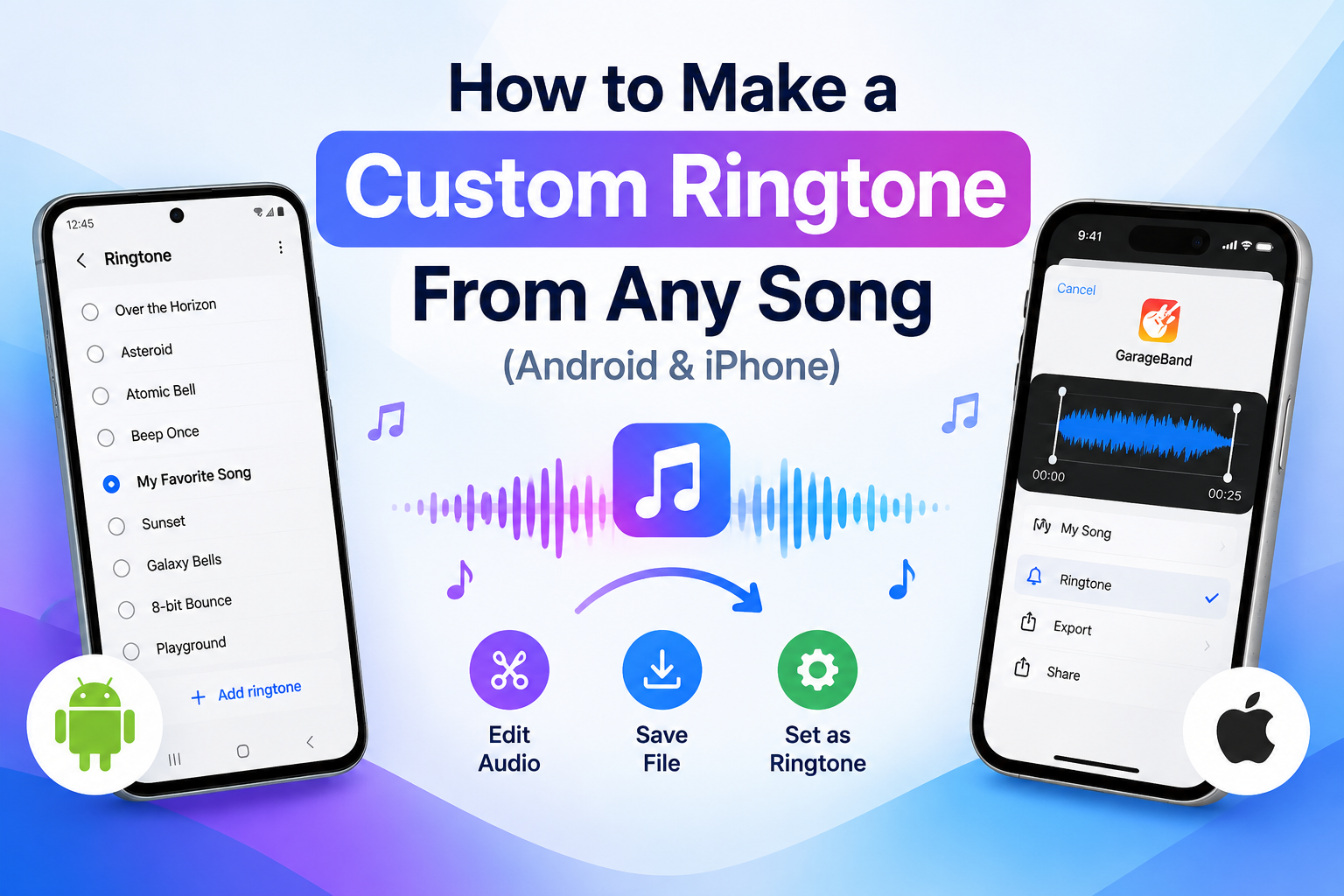
Have you ever heard a song and thought it would make the perfect ringtone? Instead of using the same default sound as everyone else, you can turn a favorite part of a song into a ringtone for your smartphone.
The good news is that you don’t need professional audio-editing skills or expensive software. With a suitable audio file and a few simple steps, you can create a personalized ringtone for an Android phone or an iPhone.
In this guide, you’ll learn how to make a custom ringtone from a song, trim the audio, save it in the appropriate format, and set it as your default ringtone. We’ll also cover common problems and simple ways to fix them.
Quick Answer: How to Make a Ringtone From a Song
To create a custom ringtone, choose an audio file you own or have permission to use, cut out your favorite section with an audio editor, and save it in a compatible format.
- Android: Save the audio as an MP3 file, then select it through your phone’s ringtone settings.
- iPhone: Use GarageBand to import an eligible audio file, trim it, and export it as a ringtone.
- Recommended length: Around 20–30 seconds is a practical starting point.
- Cost: You can usually do this for free with built-in tools or free apps.
The exact steps may vary depending on your phone model and operating system version.
What Is a Custom Ringtone?
A custom ringtone is a sound you choose or create to play when someone calls your phone. Instead of relying on the standard tones installed on your device, you can use a favorite melody, an instrumental section, a personal recording, or another suitable audio clip.
For example, you might choose the chorus of a favorite song, a relaxing instrumental melody, or a short sound effect that is easy to recognize.
You can also create different ringtones for individual contacts if your phone and contacts app support that feature. This can help you recognize certain callers without checking your screen every time.
What You Need Before Creating a Ringtone
Before you begin, make sure you have the following:
- A smartphone running Android or iOS.
- An audio file that you can legally use and access on your device.
- A ringtone maker or audio-editing app.
- Enough free storage space to save the finished file.
- Headphones or a speaker to check the sound quality.
Remember that a song available for streaming in a music app is not necessarily available as a downloadable audio file. You may need a separate, legally obtained audio file to edit it.
How to Make a Custom Ringtone on Android
Android makes it relatively straightforward to use a compatible audio file as a ringtone. Many Android phones support MP3 files, although available formats and menu options can differ by manufacturer.
Follow these steps to create your ringtone.
Step 1: Choose Your Favorite Song
Start by selecting the song or audio recording you want to use. Choose a section that sounds good even when played for only a few seconds.
A recognizable chorus or melody often works better than a long musical introduction.
Make sure the audio file is stored on your phone or in a location from which your editing app can import it.
Step 2: Trim the Audio
Open an audio editor or ringtone-making app and import your chosen file.
Look for the trimming or cutting tool. Select the beginning and ending points of the section you want to use.
For a practical result, try a 20–30-second clip. Remove unnecessary silence at the beginning and avoid cutting off a word or musical note at the end.
Listen to the selected section before exporting it.
Step 3: Export the Ringtone
When you’re happy with the result, export or save the edited audio.
Choose MP3 if your phone supports it. Give the file a recognizable name, such as My-Custom-Ringtone.mp3, and save it to your device.
If your editing app offers audio-quality settings, choose a reasonable quality that balances clear sound with a manageable file size.
Step 4: Set the Ringtone on Your Android Phone
Once the file is saved, follow these general instructions:
- Open Settings on your phone.
- Select Sound & vibration or a similarly named option.
- Tap Phone ringtone or Ringtone.
- Look for an option such as My Sounds, Add ringtone, or a plus sign.
- Select your saved audio file.
- Preview the sound and confirm your selection.
Your new ringtone should now play when you receive a call.
Samsung Galaxy tip: On many Samsung phones, open Settings, select Sounds and vibration, and tap Ringtone. If you cannot see your file, look for the add option and choose the audio from your phone’s storage.
Google Pixel tip: Open Settings, select Sound & vibration, and look for Phone ringtone. Depending on your software version, you may be able to select a local audio file through the ringtone picker.
Menu names vary across Android devices, so use the Settings search feature if you cannot find the ringtone option.
How to Make a Custom Ringtone on iPhone
Creating a ringtone on an iPhone involves a slightly different process. One convenient option is GarageBand, Apple’s music-creation app, which can export a suitable audio project as a ringtone.
Step 1: Get Your Audio File Ready
Choose an audio file you are allowed to use and make sure it is accessible on your iPhone.
You can start with a personal recording, an original sound, or a compatible audio file saved in the Files app.
A song appearing in a streaming service does not automatically mean you can import or edit it as a ringtone. Availability depends on the file and its usage restrictions.
Step 2: Open GarageBand
If GarageBand is not installed, check the App Store for availability.
Open the app and create a new audio project. Choose an appropriate instrument or audio-recorder option, then switch to the track or timeline view.
The interface may look different depending on your GarageBand version, but the goal is to create a project into which you can import your audio.
Step 3: Import and Trim the Audio
Use the loop or file browser to locate an eligible audio file in your device storage.
Import it into the project and place it on the timeline. Drag the edges of the audio region to select the section you want to use.
Listen to the selection and make sure it begins promptly and ends cleanly.
GarageBand’s standard ringtone export workflow supports a maximum length of 30 seconds. If your selection is too long, shorten it before exporting.
Step 4: Export Your Ringtone
After editing the audio:
- Return to the GarageBand project browser.
- Find and select your project.
- Open the sharing options.
- Choose Ringtone as the export type.
- Enter a name for your ringtone.
- Tap Export and wait for the process to finish.
If the export completes successfully, GarageBand may offer the option to set the ringtone immediately. Otherwise, you can select it later in your iPhone’s settings.
Step 5: Set Your New iPhone Ringtone
To select the exported ringtone:
- Open Settings.
- Tap Sounds & Haptics.
- Select Ringtone.
- Find the custom ringtone you exported.
- Tap it to select it.
Play a test sound or ask someone to call you to confirm that everything works as expected.
Android vs. iPhone: Which Is Easier?
Both platforms support custom ringtones, but the setup process is different.
| Feature | Android | iPhone |
|---|---|---|
| Common method | Select a local audio file in ringtone settings | Export a ringtone using GarageBand |
| Typical workflow | Trim, save, and select | Import, trim, export, and select |
| Common audio format | MP3 is widely supported | GarageBand exports a ringtone directly |
| Computer required | Usually not | Usually not with GarageBand |
| Contact-specific tones | Supported on many devices | Supported through Contacts |
| Cost | Often free | GarageBand is free where available |
The easiest option depends on the phone you own and the audio file you want to use. Android generally offers a simple local-file workflow, while GarageBand provides an integrated ringtone-export method for iPhone users.
Best Free Tools for Creating Custom Ringtones
You do not necessarily need a dedicated ringtone app. Several types of tools can help you prepare audio for your phone.
1. GarageBand
GarageBand is a useful choice for iPhone users who want to import, edit, and export audio as a ringtone. It also offers additional music-creation features if you want to make a more personalized sound.
2. Built-in Android Ringtone Settings
If you already have a suitable audio file, your phone’s ringtone settings may be all you need. Many Android devices allow you to select a local sound without installing another app.
3. Audio Trimming Apps
An audio trimmer lets you choose the start and end of a recording, remove unwanted sections, and export the result.
Before installing one, check its recent reviews, supported file formats, privacy practices, and requested permissions.
4. Online Audio Editors
Browser-based audio editors can be convenient when you want to trim a compatible file without installing a new app. However, consider privacy before uploading recordings, and avoid sites that require unnecessary personal information or downloads.
For private recordings, an offline editor may be the better choice.
How to Make Your Ringtone Sound Better
A ringtone should be recognizable, clear, and loud enough to hear in everyday situations. A few small adjustments can make a noticeable difference.
Choose the right section. Start with the most recognizable part of the audio instead of several seconds of silence or a slow introduction.
Keep it short. A 20–30-second clip is usually enough for a ringtone and makes the file easier to manage.
Check the volume. Listen through your phone’s speaker before setting the file as your default ringtone. Audio that sounds loud in headphones may sound quieter on a phone speaker.
Avoid abrupt cuts. Try to end the clip at a natural musical pause or phrase. If your editor supports fading, a short fade can make the ending sound smoother.
Use a distinctive sound. A clear melody or short instrumental section may be easier to recognize than a complicated recording with lots of background noise.
Test it in a real situation. Listen at a normal ringtone volume in a quiet room and a noisier environment. Adjust the file if the sound is difficult to hear.
How to Set a Different Ringtone for Each Contact
You can personalize your phone further by assigning different ringtones to individual contacts.
On Android
- Open the Contacts app.
- Select the person you want to customize.
- Tap Edit or open the contact’s additional options.
- Look for the Ringtone setting.
- Select a suitable tone and save your changes.
The exact location of this setting depends on your device and contacts app.
On iPhone
- Open the Contacts app.
- Select the person you want to customize.
- Tap Edit.
- Select Ringtone.
- Choose your preferred sound and tap Done.
This feature is particularly useful if you want to distinguish calls from family members, friends, or work contacts.
Common Custom Ringtone Problems and Solutions
Sometimes a ringtone does not appear in the list or sounds different from what you expected. Here are some common solutions.
My Ringtone Does Not Appear on Android
First, check that the file was exported successfully and is stored on your device.
If the ringtone picker cannot find it, try using the add-file option or moving the audio into the device’s Ringtones folder. Check that the file format is supported by your phone.
My Ringtone Does Not Appear on iPhone
Make sure GarageBand completed the ringtone export process. Then open Settings, select Sounds & Haptics, and check the Ringtone list.
If you cannot see the sound, return to GarageBand and confirm that the project was exported as a ringtone rather than as an ordinary audio file.
The Ringtone Sounds Too Quiet
Play the original file and the edited version at comparable volume levels. Check whether the editor reduced the volume during export.
If necessary, adjust the audio level in your editor and export the ringtone again. Avoid excessive amplification because it can cause distortion.
The Ringtone Starts Too Late
Open your audio editor and inspect the beginning of the clip. Remove any unwanted silence or long introduction, then export the file again.
The Audio Stops Abruptly
Move the ending point to a more natural pause in the music. If your editing tool supports a fade-out, apply a short one and preview the result.
I Cannot Use a Downloaded Song
Some music files have restrictions that prevent them from being imported, edited, or reused as a ringtone. A streaming download may be available only within its original app.
Try using an original recording or a compatible audio file that you have permission to use.
Is It Safe to Use Online Ringtone Makers?
Online ringtone makers can be useful, but you should choose them carefully.
Before using a website or installing an app, consider these precautions:
- Use a reputable service and check its privacy policy.
- Avoid downloading unknown APK files from unfamiliar websites.
- Do not grant access to contacts, location, or other sensitive information unless it is genuinely necessary.
- Be cautious of fake download buttons, excessive pop-ups, and unexpected redirects.
- Do not upload private recordings unless you trust the service’s data-handling practices.
- Use music and recordings in accordance with applicable copyright rules.
A basic ringtone tool generally does not need your phone contacts or location. If a service asks for unrelated permissions, consider another option.
Frequently Asked Questions
Can I make a ringtone from any song?
You can create a ringtone from a compatible audio file that you own or are permitted to use. However, streaming tracks and protected downloads may not be available for editing or ringtone creation.
Can I make a custom ringtone for free?
Yes. Android’s built-in ringtone settings and Apple’s GarageBand app can help you set up a custom ringtone without purchasing dedicated ringtone software. Other tools may charge for additional features.
What is the best length for a ringtone?
Around 20–30 seconds is a useful starting point. The ideal length depends on the sound, your preferences, and the export limits of your device or editing app.
Do I need a computer to create a ringtone?
Usually not. Many Android users can select a local audio file directly on their phone, while iPhone users can create and export a ringtone with GarageBand.
Can I use an MP3 file as an iPhone ringtone?
An MP3 cannot simply be selected in every iPhone ringtone workflow. GarageBand offers a practical alternative: import a compatible audio file and export it using the Ringtone option.
Why is my custom ringtone not playing?
Check that the ringtone is selected, your ringtone volume is turned up, and your phone is not using a silent mode or Focus setting that affects incoming calls. Also confirm that the audio file was exported correctly.
Can I use my own voice as a ringtone?
Yes. You can record your voice, trim the recording, and use it as a ringtone if it meets your phone’s format and export requirements.
Final Thoughts
Creating a custom ringtone from a song is a simple way to make your smartphone feel more personal. You only need a suitable audio file, a way to trim it, and the correct method for setting it on your device.
For Android, start by saving a compatible audio file and selecting it through your ringtone settings. For iPhone, GarageBand provides a convenient way to import audio, edit the clip, and export it as a ringtone.
Choose a recognizable section, remove unnecessary silence, and test the final sound before using it for incoming calls. With a little editing, you can replace a standard ringtone with a sound that suits your style.
Ready to personalize your phone? Choose your favorite audio clip and follow the instructions for your device to get started.